
Beyond Ad Blocker: Block the Web Distractions Ads Can’t Fix
When people think about an ad blocker, they usually think about banners, video ads, pop-ups, and redirects.
But advertising is only part of what can interrupt your browsing experience.
Modern websites may also display cookie banners, subscription prompts, login walls, app invitations, notification requests, and floating chat windows.
These aren’t always ads. But they can still affect how you browse.
That’s where FAB goes beyond traditional adblock.
Beyond Blocking Ads
Traditional ad blockers are mainly designed to filter advertising and tracking content. Products such as uBlock Origin, AdGuard, and Adblock Plus can also handle certain webpage elements through additional filtering rules.
However, modern webpages contain many different types of content interruptions.
Ads · Cookie banners · Subscription prompts · Login walls · App prompts · Floating chat windows
These elements work differently and may require different filtering approaches.
FAB’s Enhanced Adblock provides additional filtering options for supported non-ad webpage elements, allowing users to choose what they want to block.
More Than Just Ads
Cookie & Privacy Prompts
Cookie banners and privacy consent windows can appear before you even reach the content you want.
Subscription & Newsletter Prompts
Newsletter pop-ups and email subscription boxes can interrupt reading and browsing.
Login & Membership Walls
Some websites use login or membership prompts to restrict access.
This option is disabled by default because some websites may require these functions to work properly.
App & Notification Prompts
Websites may encourage users to open an app, install an app, or enable notifications.
Floating Chat & Support Widgets
Customer-service bubbles, chat windows, and AI assistants can stay visible while browsing.
You Decide What Gets Blocked!
Different users have different browsing needs.
A login prompt may be useful when accessing an account. A chat widget may help when contacting support. A notification request may be useful on certain websites.
That’s why FAB does not force all filtering options to stay enabled.
Enable the categories you want. Disable them whenever you need the original website experience.
How to Enable Enhanced Adblock in FAB
Managing these filtering options only takes a few steps:
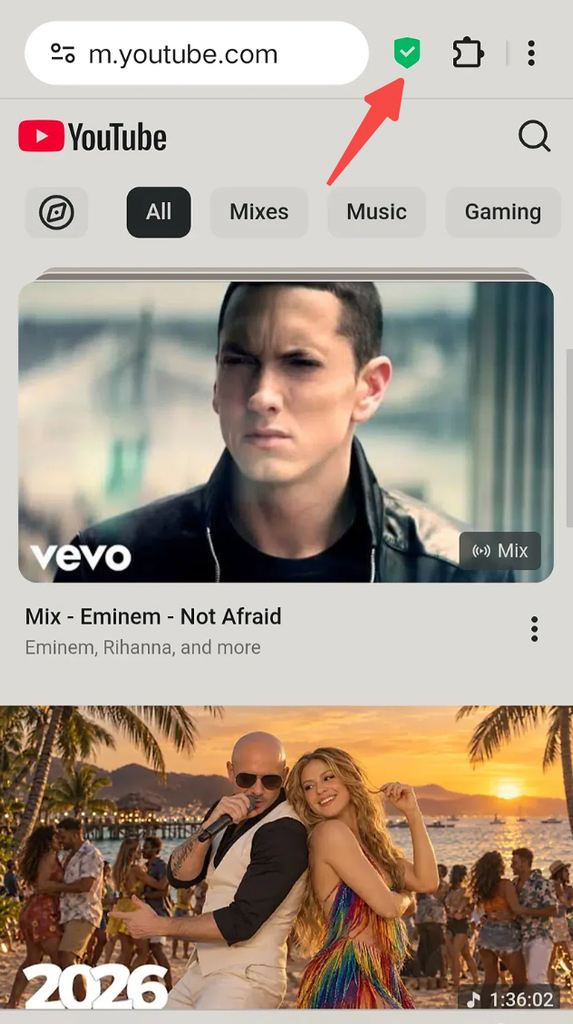
Step 1: Tap the Green Shield Icon
Open the website you want to browse and tap the small green shield icon next to the website address.
Step 2: Select “Enhanced Adblock”
Open Enhanced Adblock to access advanced filtering options.
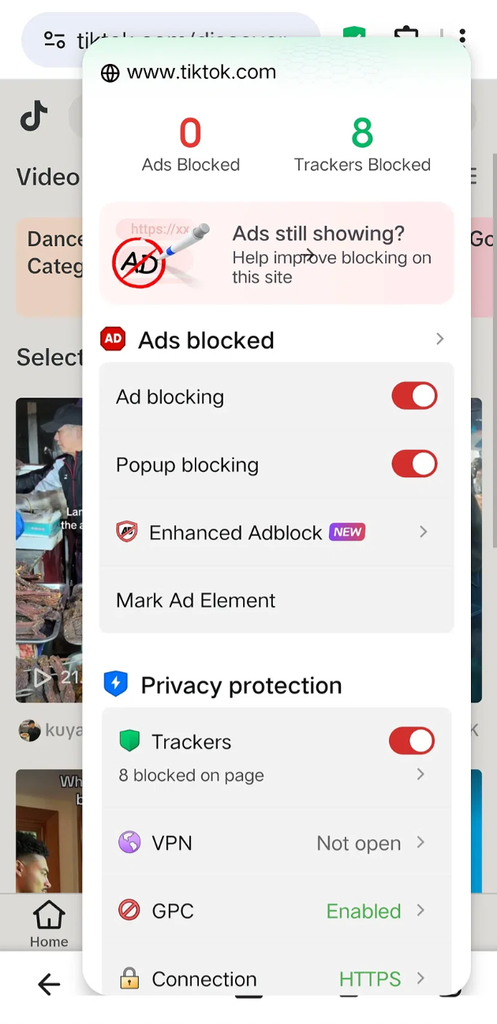
Step 3: Choose Your Filtering Options
Turn specific categories on or off based on your needs, including supported webpage elements such as cookie prompts, subscription prompts, app prompts, and other interruptions.
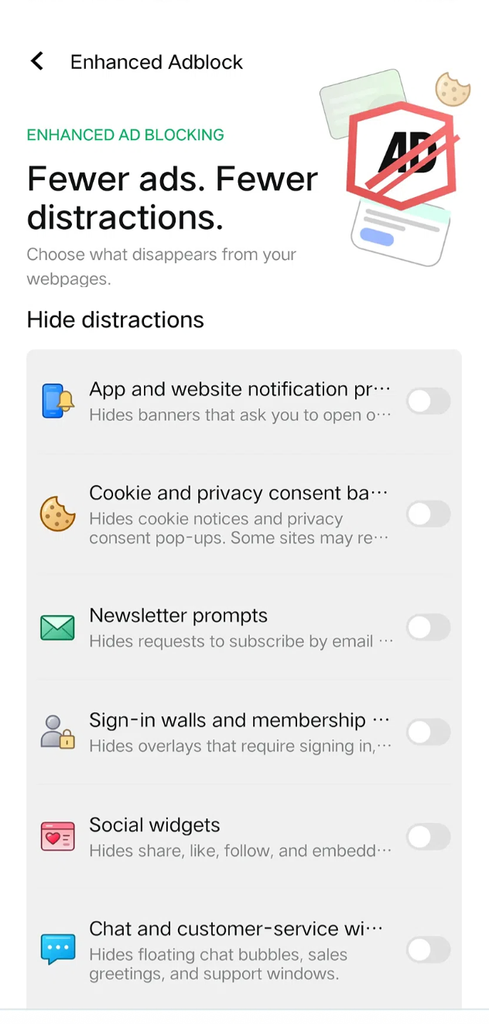
Step 4: Enjoy a Cleaner Browsing Experience
Once enabled, FAB will apply the selected filtering rules and help reduce unwanted webpage elements while you browse.
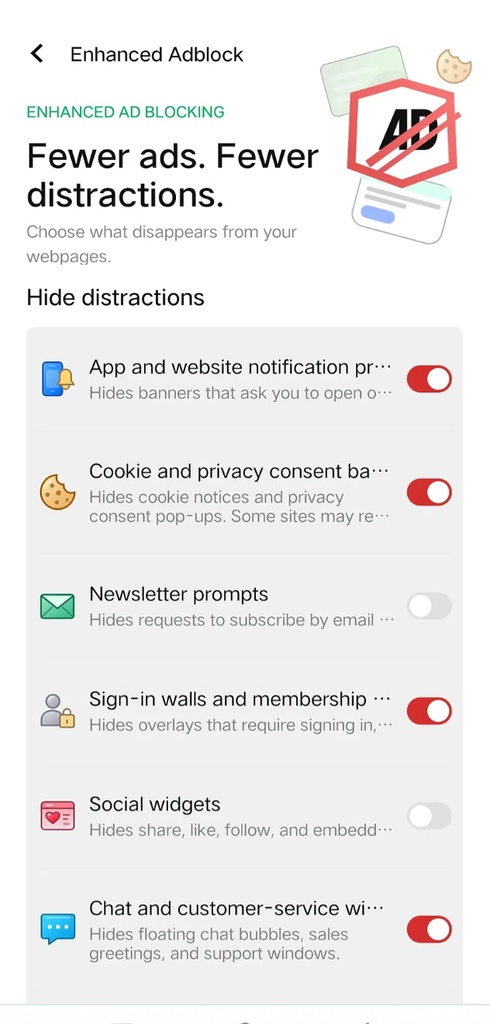
An Ad Blocker That Gives You More Control
The goal of FAB is not to remove everything from a webpage.
It is to help users decide what content stays and what content gets filtered.
Traditional ad blockers focus on advertisements.
FAB goes further by giving users control over supported webpage distractions beyond ads.
So instead of only asking:
“How do I block ads?”
you can ask:
“What do I want to keep on this page?”
That’s the difference between a basic adblocker and a more flexible browsing experience.
FAB — block what interrupts you, keep what matters.