
How to Reduce Ads and Pop-Ups While Browsing Music Website with FAB
Web music players can include ads, promotional windows, and other page interruptions. If you’re looking for a simpler way to reduce these distractions, FAB’s built-in ad blocking can help handle supported ads and pop-ups while you browse.
Prepare your notes—here’s how to get started.
What You May Encounter While Browsing a Music Web Player
When you open a music web player, there’s more than just music to navigate. Depending on the page and browsing session, you may encounter additional page elements and interruptions.
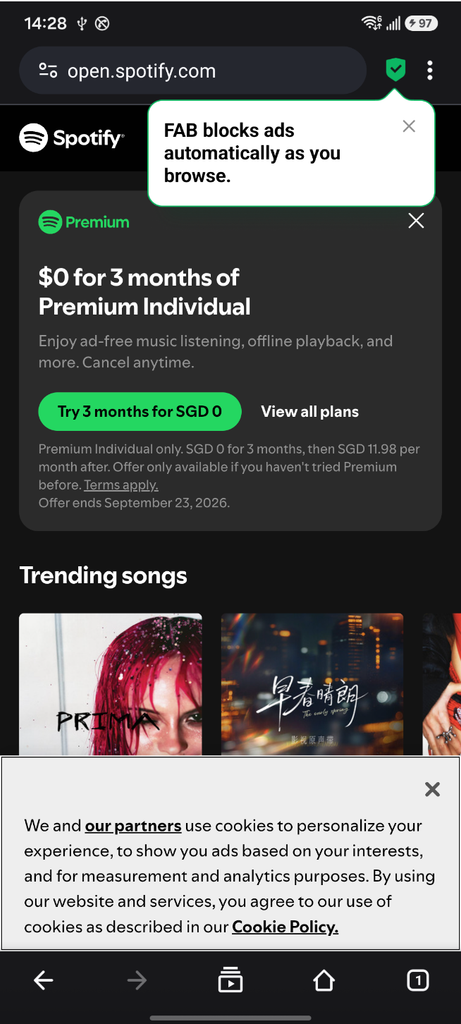
For example:
- Cookie and consent-related notices: These may appear when you first visit the website.
- Promotional windows: You may see promotional content while browsing the homepage.
- New-tab interruptions: Some Premium-related promotions may open in a new tab when you click or navigate through certain pages.
- Ads during playback: Ads may also appear while listening to music.
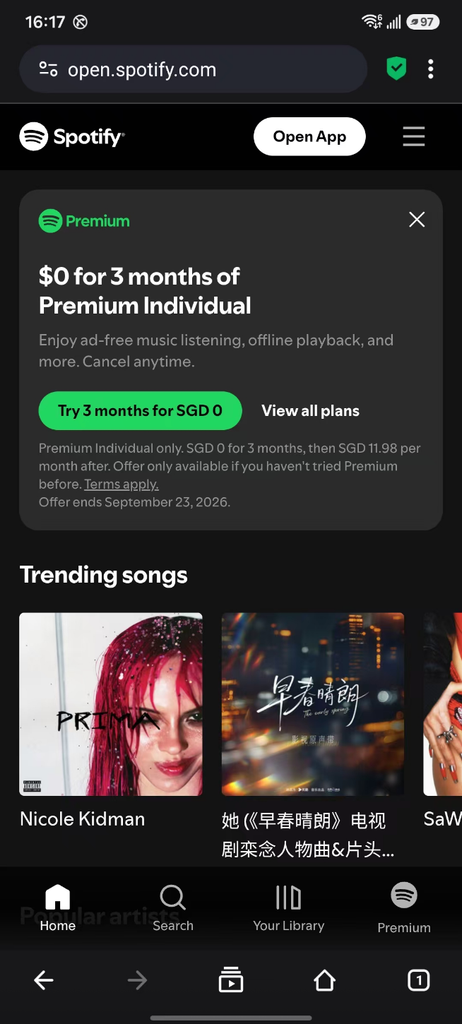
FAB provides built-in ad blocking that can help handle supported ads and pop-ups without requiring complicated setup or additional extensions.
A Simpler Way to Manage Ads and Pop-Ups
Compared with some other ad-blocking solutions that may require additional permissions, extensions, or configuration, FAB keeps the process simple.
You can manage ad blocking directly from the browser using the green shield icon, without going through multiple setup steps.
How to Enable Ad Blocking in FAB
It only takes a few simple steps.
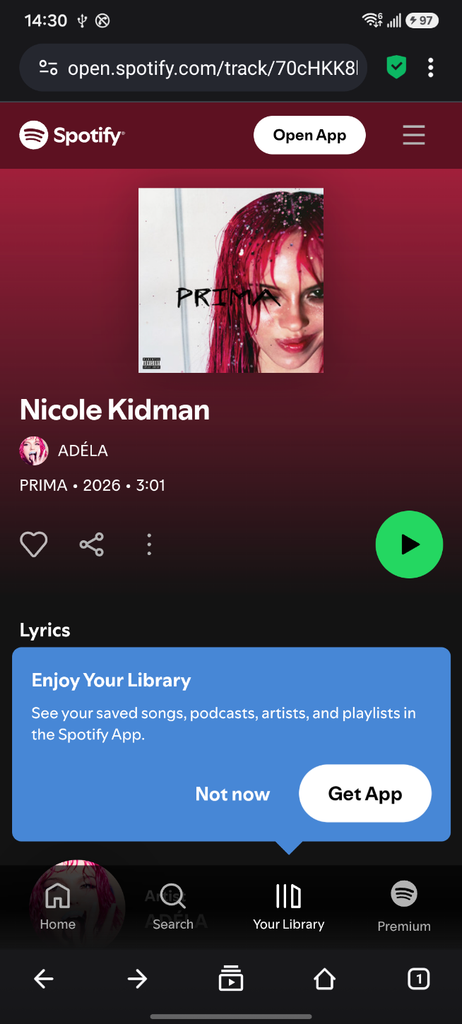
Step 1: Open the Music Web Player with FAB
Open Free Adblocker Browser and visit the music web player you want to use.
Browse the website normally. You’ll see a green shield icon in the top-right corner of the browser.
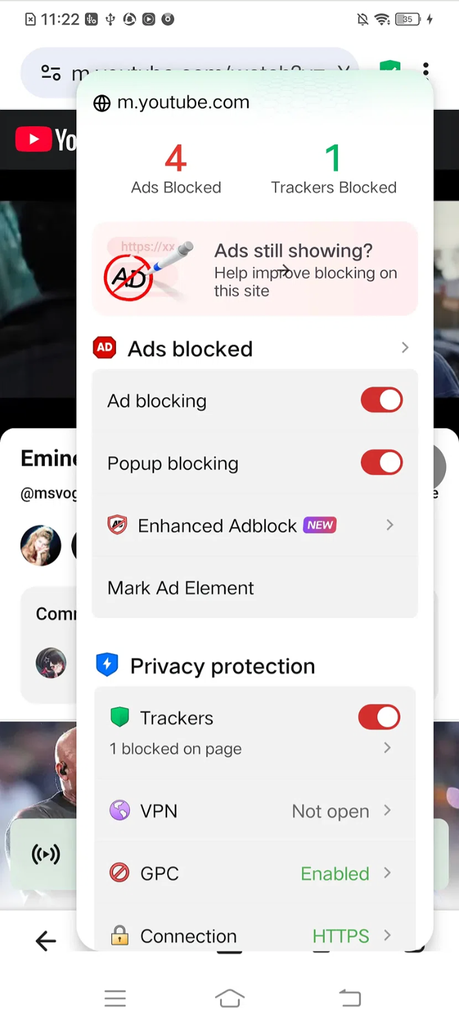
Step 2: Tap the Green Shield
Tap the green shield icon in the top-right corner.
The green shield provides quick access to FAB’s ad-blocking and related protection settings.
Step 3: Turn On Ads Blocked
In the settings panel that appears, find Ads Blocked and make sure it is enabled.
Once enabled, FAB applies its current filtering rules to supported ads and related page elements.
That’s it.
Return to the music web player and continue browsing or playing music with FAB’s ad blocking enabled.
Explore More Features in FAB
Ad blocking is just one of the tools built into FAB. Tap the ⋯ menu to explore additional browser features and protection settings designed to make everyday web browsing more private and convenient.
Step 1: Open the Music Web Player with FAB
Open Free Adblocker Browser and visit the music web player you want to use.
Browse the website normally. You’ll see a green shield icon in the top-right corner of the browser.
Step 2: Tap the Green Shield
Tap the green shield icon in the top-right corner.
The green shield provides quick access to FAB’s ad-blocking and related protection settings.
Step 3: Turn On Ads Blocked
In the settings panel that appears, find Ads Blocked and make sure it is enabled.
Once enabled, FAB applies its current filtering rules to supported ads and related page elements.
That’s it.
Return to the music web player and continue browsing or playing music with FAB’s ad blocking enabled.
Explore More Features in FAB
Ad blocking is just one of the tools built into FAB. Tap the ⋯ menu to explore additional browser features and protection settings designed to make everyday web browsing more private and convenient.